How to make workflow automations that don’t break
In short: It’s pretty easy. Just keep things simple, document your work, and configure error notifications. And, of course, ask AI for help as you design and build.
Below, I assume you’re using Zapier, but the same principles apply to Make, Lindy, Airtable, Claude Skills etc.
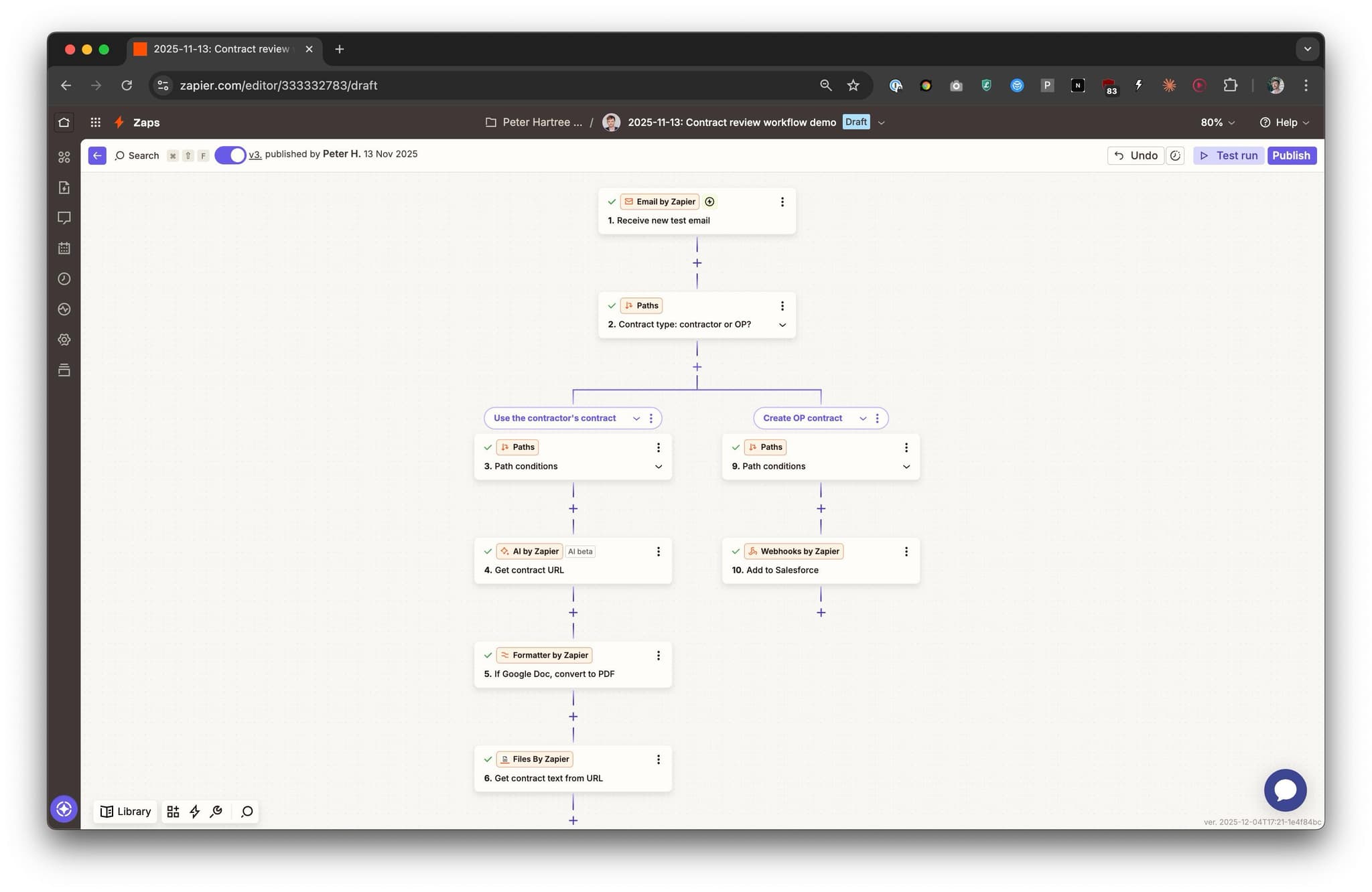
A 'Service contract to Salesforce' workflow. If a contractor submits their contract as a PDF or Google Doc, extract key information and add it to Salesforce. If there's no contract, generate one, add to Salesforce and send for signature.
How to design and build Zaps
Explain your workflow to your default model. Ask it to help you identify automation opportunities, then develop a plan to implement using Zapier.
Use Zapier Copilot to start building the zap, and to troubleshoot.
Take a screenshot of your draft Zap, paste it back into your default model, and ask for feedback.
How to make your Zaps robust
1. Keep Zaps simple
Your Zap’s purpose should be explainable with a short title. The full process should be explainable in 2-3 sentences. There should be 5 branch points at most (usually less). If things become more complicated, split things into several Zaps.
2. Don’t repeat yourself
Do not repeat the same function in several different Zaps. Instead, use Sub-Zaps.1
3. Document your Zaps in a central registry
Maintain a central registry (in Docs, Sheets or Notion) that documents all your Zaps.
#todo - visual mockup
Give Zaps descriptive titles, prefixed by a unique, permanent ID (e.g. “PO-55: Get employment history from LinkedIn”).
Every Zap must have an owner, and changes require owner approval.
4. Make Zaps fail loudly
Configure error notifications so the owner is urgently alerted if something breaks, and relevant team members are tagged via an #automation-alerts Slack channel. It should not be possible for a Zap to fail for days without someone noticing.
If a Zap does fail, inspect the Zapier logs to figure out why. The full data for every Zap run is stored in the logs, so you can make a fix then press “retry” to repeat the run.2 Worst case, you can export all the data to CSV, then repair manually.
5. Initially, keep humans in the loop
When you pilot a new automation, use Zapier’s “human in the loop” feature to pause for Slack review before taking important actions (e.g. emailing a customer).
6. Consider the failure modes and define acceptable error rates
Think about all the ways that automations could go wrong, and how costly those failures might be. When failure costs might be high, add a ”human in the loop″ step before taking action.
7. Log then filter to prevent duplicate actions
Let’s say you want to send an email when a Salesforce “Actions” field is set to “Send welcome email”. If someone sets the field to “Send welcome email”, then changes it to “Pending”, then back to “Send welcome email”, the email would be sent twice. If you need to guard against scenarios like that, add an “Actions Log” text field to Salesforce. Then, when your Zap takes an action, append “welcome_email_sent” to the Actions Log. Then, add a filter step at the start of your Zap, to make sure the Actions Log does not already contain “welcome_email_sent”.
8. Apply full automation incrementally, starting with the easier subset
It’s probably easy to make a customer support bot write perfect replies to a subset of your total support requests. Send those replies automatically, but leave the rest in draft for human review.
9. Do not duplicate databases and then attempt two-way sync
For example: you store grants in Salesforce, and you want to export them to Airtable for weekly analysis. You know that the exported data will gradually go stale, as changes are made in Salesforce. So you make a Zap to sync data from Salesforce to Airtable. So far, that’s ok. Now though, you might think “huh, since we have this data in Airtable, it’d be much easier to edit grant data in Airtable than in Salesforce. And then we can just sync the changes back into Salesforce”. This is a bad idea, unless you really know what you’re doing.
Appendix 1. Examples of robust Zaps
1. Form submission → Salesforce record
Scenario: A prospective customer requests a product demo.
Trigger: New Google Form submission
Actions:
- Create contact record in Salesforce.
- Create a sales record in Salesforce, linked to that contact.
- Notify your sales team on Slack.
Notes:
- By default, Zapier field mapping uses API field names, so they won’t break if human-friendly field names are changed on your form, or in Salesforce.
- If a new required Salesforce field is added, the Zap will fail and alert the owner.
- There’s nothing fancy here—you’re just passing data from one place to another, saving yourself some data entry. Go for it!
2. Extract service contract details and request legal team review
Scenario: A contractor submits a service contract which needs legal team review.
Trigger: New Contract created in Salesforce
Actions:
- Use an LLM (via Zapier AI) to extract key information from the service contract PDF.
- Send a Slack message to your legal team with a summary of the key details, and links to read the PDF and approve/query via Salesforce.2
Notes:
- LLMs are very good at data extraction. For a <50 page PDF, you’re very unlikely to see mistakes or hallucination, unless your prompt is very badly written.
- Nonetheless—test your LLM prompts. Make sure that your team does actually check the original PDF in high stakes cases.
3. Verify contractor details
Scenario: You have contractor information in Salesforce. You want the contractor to verify it and provide a few extra details.
Zap 1: Email the contractor
Trigger: In Salesforce, a user selects “Verify details” from the “Actions” field on a contractor record.
Actions:
- Email the contractor a request to verify their details. The email contains a link to a Fillout form with the details you have on file pre-filled.
Zap 2: Handle form submission
Trigger: Contractor submits the “verify details” Fillout form.
Actions:
- Check if they selected “my details have changed”.
- If they did:
- (optionally) Run some automated checks, e.g.
- Does their company exist in the relevant state business register?
- Does the tax form PDF they submitted contain valid inputs for all required fields?
- Slack your staff a “contractor details submitted” message, with the new details in the message, and a button to click “Accept updates”. When clicked, that button submits the information to Zap 3.
- (optionally) Run some automated checks, e.g.
Zap 3: Update Salesforce
Trigger: Contractor details submitted from Slack via webhook.
Actions:
- Create or update contractor details in Salesforce.
Notes:
- Zap 3 is re-usable. You could also use it to update contractor details from other sources (e.g. an internal form or Slack message).
- Stale data risk: some calendar time will pass between the moment you email the contractor, and the moment they submit the form. During that time, someone might edit the contractor’s details in Salesforce, such that the pre-filled data in the form becomes stale.
- This probably doesn’t matter.
- If the details are stale, the contractor will correct them.
- If you can think of scenarios where there might be trouble, check for them at the human review step in Zap 2.
- You’d face the same issue if you simply emailed them the details (skipping the form prefill).
- This probably doesn’t matter.
- The “human review” step in Zap 2 is quite conservative. Plausibly, you don’t need it.
Appendix 2. Examples of non-robust zaps
1. Complex conditional lead routing
Scenario:
A marketing form submission needs to be routed to one of 10 different regional sales managers based on a combination of their company size, industry, and the day of the week.
Trigger: New form submission in Typeform.
Actions:
- Action 1 (Filter): If Company Size is > 1000 AND Industry is ‘Finance’:
- Action 1.1: If Day of Week is Monday or Tuesday, create a lead in Salesforce for Manager A.
- Action 1.2: If Day of Week is Wednesday or Thursday, create a lead in Salesforce for Manager B.
- Action 1.3: If Day of Week is Friday, create a lead in Salesforce for Manager C.
- Action 2 (Filter): If Company Size is < 1000 AND Industry is ‘Tech’:
- (Repeats logic branches from Action (1))
- Action 3 (Filter): If Company Size is < 1000 AND Industry is ‘Healthcare’:
- (Repeats logic branches from Action (1))
Notes:
- This zap violates: “Keep Zaps simple” and “don’t repeat yourself”
2. Duplicated Customer Database Sync
Scenario: A company uses Salesforce for Sales data and HubSpot for Marketing data. They try to keep the customer contact records perfectly in sync between the two.
Trigger: New or Updated Contact in Salesforce.
Actions:
- Search for Contact in HubSpot by Email.
- If Contact is not found:
- Action 2.1: Create New Contact in HubSpot with all fields from Salesforce.
- If Contact is found:
- Action 3.1: Update Existing Contact in HubSpot with all fields from Salesforce.
Notes:
- This Zap is brittle due to the complexity required for a reliable two-way sync (especially if a mirror Zap exists for HubSpot → Salesforce).
- There is a high risk of creating an infinite loop of updates between the two systems unless complex filters are used, which makes the Zap even harder to maintain.
- The duplicated database violates the “Keep a single source of truth” principle, leading to potential data corruption and conflicting information across the company.
3. Any Zap without proper error notifications and documentation!
I’ll write about error notification design sometime soon. Meantime, see the Zapier docs.
I’ll also make a template for documenting zaps…
Appendix 3. How to use Sub-Zaps
Scenario: you receive support requests via Slack and email.
Zap 1: Handle support request
- Trigger: New support request.
- Action: Take support request text and metadata, look up the answer in your knowledgebase, draft a reply, then trigger a human in the loop step before sending the reply via Slack or email.
Zap 2: Route support request from Slack
- Trigger: New Slack support request.
- Action: Trigger Zap 1 (as Sub-Zap).
Zap 3: Route support request from email
- Trigger: New email support request.
- Action: Trigger Zap 1 (as Sub-Zap).